
Selected Content

Selected content is used to display a deliberately curated set of items chosen for relevance, emphasis, or narrative purpose. Unlike dynamic listings, it is manually controlled, allowing order, grouping, and prominence to be intentional.

There are a number of stylistic options available for displaying selected content. This page demonstrates the following examples:

  1. Columns, with content displayed as:
  2. Slideshow
  3. Tile grids grouped within accordions

1. Columns

Column layouts can be used to display selected content in a clear format. The examples below show the locations for a fictional School of Beekeeping, using a varying number of columns and display styles.

Columns example A:

Portrait image (default), three columns.
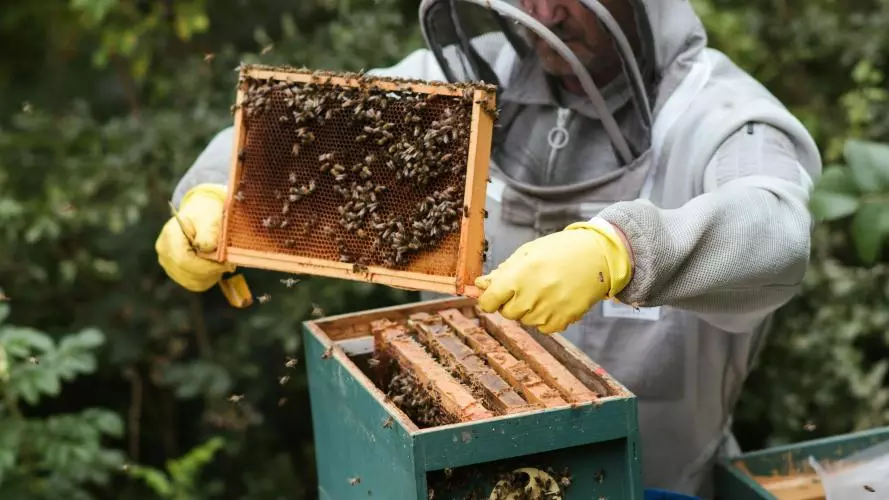
beekeeper dealing with bees in a honey hive

Oxford Apiary

A fictional apiary used for teaching, research, and community engagement. The site includes managed beehives, an observation unit for student learning, and ongoing projects examining pollinator resilience.
library book stacks

The Beekeeper's Library

A fictional, academic library and archive focused on apiculture, pollinator science, and environmental sustainability. A fictional, academic library and archive focused on apiculture, pollinator science, and environmental sustainability. It specialises in rare and contemporary books and academic journals.
lecture hall

The School of Beekeeping

The academic home of the University’s fictional teaching in apiculture and pollinator science. The building includes lecture theatres, specialist laboratories, and practical training spaces.

How to achieve the look:

ActionConfiguration options
Add a section3 columns
Add a componentSelected content
Find the content 
Display stylePortrait image; Heading 2

Columns example B:

Landscape text only, two columns.

Oxford Apiary

A fictional apiary used for teaching, research, and community engagement. The site includes managed beehives, an observation unit for student learning, and ongoing projects examining pollinator resilience.

The School of Beekeeping

The academic home of the University’s fictional teaching in apiculture and pollinator science. The building includes lecture theatres, specialist laboratories, and practical training spaces.

How to achieve the look:

ActionConfiguration options
Add a section2 columns
Add a componentSelected content
Find the content 
Display styleLandscape text only; Heading 2

Columns example C:

Landscape thumbnail, single column.
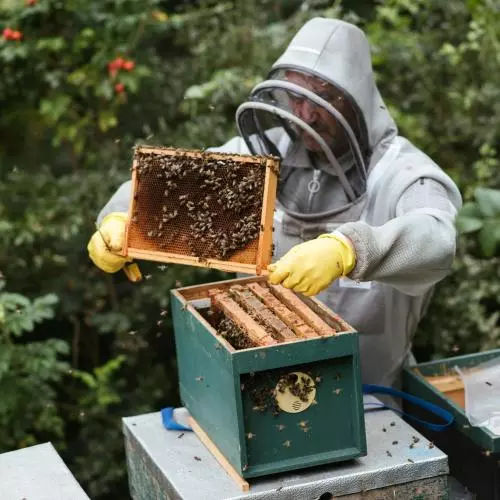
beekeeper dealing with bees in a honey hive

Oxford Apiary

A fictional apiary used for teaching, research, and community engagement. The site includes managed beehives, an observation unit for student learning, and ongoing projects examining pollinator resilience.
library book stacks

The Beekeeper's Library

A fictional, academic library and archive focused on apiculture, pollinator science, and environmental sustainability. A fictional, academic library and archive focused on apiculture, pollinator science, and environmental sustainability. It specialises in rare and contemporary books and academic journals.
lecture hall

The School of Beekeeping

The academic home of the University’s fictional teaching in apiculture and pollinator science. The building includes lecture theatres, specialist laboratories, and practical training spaces.

How to achieve the look:

ActionConfiguration options
Add a section1 column
Add a componentSelected content
Find the content 
Display styleLandscape thumbnail; Heading 2

Columns example D:

Portrait text only, three columns.

Oxford Apiary

A fictional apiary used for teaching, research, and community engagement. The site includes managed beehives, an observation unit for student learning, and ongoing projects examining pollinator resilience.

The Beekeeper's Library

A fictional, academic library and archive focused on apiculture, pollinator science, and environmental sustainability. A fictional, academic library and archive focused on apiculture, pollinator science, and environmental sustainability. It specialises in rare and contemporary books and academic journals.

The School of Beekeeping

The academic home of the University’s fictional teaching in apiculture and pollinator science. The building includes lecture theatres, specialist laboratories, and practical training spaces.

How to achieve the look:

ActionConfiguration options
Add a section3 columns
Add a componentSelected content
Find the content 
Display stylePortrait text only; Heading 2

Columns example E:

Landscape image, two columns.
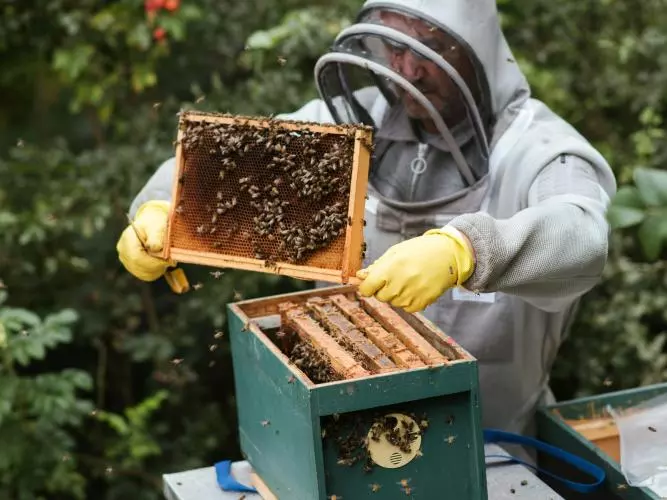
beekeeper dealing with bees in a honey hive

Oxford Apiary

A fictional apiary used for teaching, research, and community engagement. The site includes managed beehives, an observation unit for student learning, and ongoing projects examining pollinator resilience.
lecture hall

The School of Beekeeping

The academic home of the University’s fictional teaching in apiculture and pollinator science. The building includes lecture theatres, specialist laboratories, and practical training spaces.

How to achieve the look:

ActionConfiguration options
Add a section2 columns
Add a componentSelected content
Find the content 
Display styleLandscape image; Heading 2

2. Slideshow

Use a slideshow when you want to present a handpicked selection of high-impact content in a visually prominent, narrative-led way. 

Example below:

Showcase of flagship AI research projects for a landing page, to demonstrate the breadth of work across different sectors.

Selected content in a slideshow format, shown with a 33:66 ratio of title and image.

AI for Global Health Initiative
AI in Education Project
AI for Climate Modelling

How to achieve the look:

ActionConfiguration options
Add a sectionSlideshow
Add componentSelected content
Find content 
Display styleBanner 33/66; Heading 2

3. Accordion and Tile Grid

Use an accordion when you need to present a defined, curated set of detailed content in a structured way, allowing users to expand sections as needed.

Use a tile grid when you want to display static content in a balanced, scannable way.

Example below:

Team members of a fictional poetry school, displayed in tile grids, and organised by role using accordions.


Headshot of a woman

Annie Apple

Poetry teacher at The Fictional Poetry School, specialising in traditional Irish forms and oral storytelling traditions.
headshot of a man

Ben Barts

Poetry teacher at The Fictional Poetry School, working with students on voice, rhythm, and stagecraft, helping them develop work that is compelling when spoken aloud.
headshot of someone with long dark hair and a floral shirt

Camila Castillo

Poetry teacher at The Fictional Poetry School, specialising in Latin American lyric traditions and eco-poetry. Camila encourages students to weave landscape, memory, and political consciousness into their work, drawing on both Spanish-language influences and contemporary global voices.

headshot of a woman outside

Dominique Davis

Dominique Davis is a poetry researcher at The Fictional Poetry School, focusing on comparative poetics and the evolution of form across literary movements, with particular interest in how structure shapes meaning and reader experience.
headshot of a man in stripey shirt

Erik Edlund

Poetry researcher at The Fictional Poetry School, focusing on minimalism and the disciplined use of structure, exploring how restraint and precision can intensify emotional impact in contemporary verse.
headshot of a woman

Farah Faber

Senior researcher at The Fictional Poetry School, with a longstanding interest in manuscript studies and the preservation of early modern verse, examining how editorial choices shape the poems we read today.

How to achieve the look:

ActionConfiguration options
Add sectionAccordion; Heading 2
Open accordion section 
Add component to accordionTile grid; 3 tiles per row
Add component to tile gridSelected content
Find contentPortrait image; Heading 3